How to Create a QR Code
Creating a QR code takes seconds and costs nothing. This guide walks through the whole process — from choosing what to encode to downloading a print-ready file you can trust to scan.
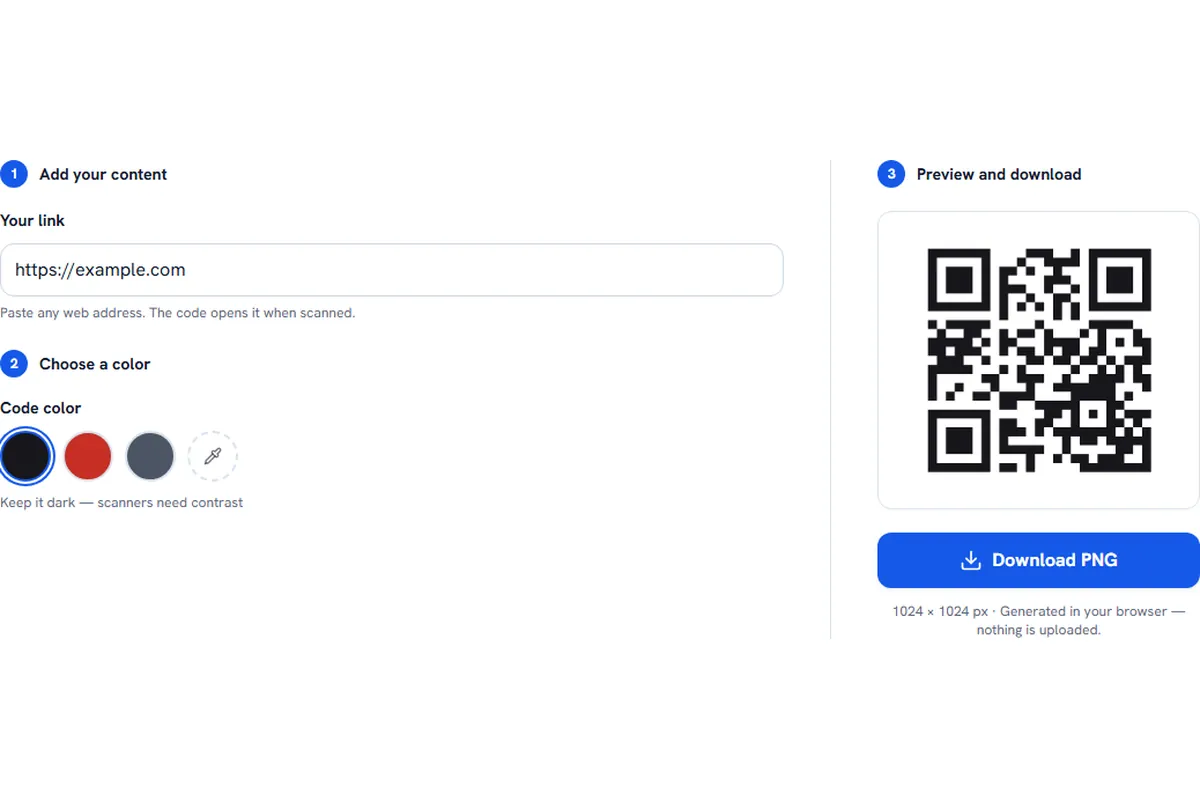
Make your QR code right here
Pick a type, add your content and download a print-ready PNG — the same free generator as on the homepage. Nothing is uploaded.
Open the full QR code generator
Choose what to encode
A QR code is just text in an image, so first decide what text. The most common choice is a URL, but you can also encode plain text, Wi-Fi credentials, a vCard contact, or a link to a hosted PDF.
Match the type to the job. A URL code sends people to a web page, a Wi-Fi code lets guests join your network in one tap, a vCard code hands over your contact details, and a PDF code opens a document such as a menu or brochure. Pick the simplest type that does what you need — simpler content makes a simpler, easier-to-scan code.
Which QR code do you need?
Pick the type that matches what should happen after the scan: a link opens a page, a WiFi code joins a network, a contact card saves your details, text shows a note, and a PDF link opens a document. Simpler content makes a smaller code, so choose the simplest type that does the job.
Every type has its own free tool, with a guide and answers to common questions:
- URL GeneratorLink to QR code: paste any web address (URL) and get a code that opens the page when scanned.
- Digital Business Card GeneratorShare your contact details as a scannable vCard people can save in one tap.
- Text GeneratorEncode a note, quote, or instructions as plain text — no link required.
- WiFi GeneratorLet guests join your Wi-Fi with a single scan instead of typing a password.
- PDF GeneratorLink a hosted PDF so one scan opens the document on any phone.
- Image to QR Code GeneratorPut your picture or logo in the centre of a QR code that opens your link.
- LinkedIn QR CodeTurn your LinkedIn profile or company page into a code people scan to connect.
- Facebook QR CodeSend people to your Facebook page, profile, or group with one scan.
- Google Form QR CodePut a Google Form on paper or slides for surveys, sign-ups, and attendance.
- Cash App QR CodeGet paid faster with a printable code that opens your Cash App $cashtag.
- QR Code ScannerRead any QR code from a screenshot, photo, or camera, right in your browser.
Enter your content
Paste your link or type your text into the generator. The preview updates instantly as you type — there is no submit button and nothing is uploaded to a server.
Keep the content as short as you reasonably can. A long URL or a wall of text produces a denser grid of squares that is harder for a camera to read. If your link is long, run it through a shortener first.
Pick the right color
The default dark-on-light look scans most reliably, so only change the color when you have a reason to. If you do customize, keep the code dark on a light background — a near-black code on white is the safest choice.
Avoid light gray, pale yellow, or any low-contrast combination. Scanners measure the difference between dark and light squares, so when that difference shrinks, scanning fails. Color is decorative; contrast is what makes the code work.
Download and test
Download a 1024 × 1024 PNG with the white quiet zone scanners need. The quiet zone is the blank margin around the code — never crop it off, or cameras may not recognize the code at all.
Before you print or publish, scan the code with your own phone camera. Then ask someone else to scan it on a different device. A quick test catches contrast, sizing, and cropping problems while they are still free to fix.
Common mistakes to avoid
Cropping the white margin, using a low-contrast color, printing the code too small (under about 2 cm wide), or placing it behind reflective glass where glare hides the squares. Each of these is a frequent cause of codes that look fine but will not scan.
How to print a QR code
Download the PNG and place it in your document or design without stretching it. For print, keep the code at least 2 cm (0.8 in) wide; for a poster or a window, size it to about a tenth of the distance people will scan from, so a code read from 2 m away should be about 20 cm wide.
Print dark on light, keep the white margin around the code, and avoid glossy surfaces that reflect light. Before printing hundreds of copies, print one test page and scan it from where people will actually stand.
Static vs dynamic QR codes
A static QR code stores your link or text directly in the pattern. It is free, needs no account, never expires and works as long as the content is valid — this is the kind RoyaleQR makes. The trade-off is that you cannot change it after printing.
A dynamic QR code stores a short link owned by a QR service, which then redirects to your page. You can change the destination and count scans, but it usually needs a subscription, and if the plan ends or the service closes, every printed code stops working. For most menus, flyers, cards and Wi-Fi signs, a static code is the safer choice.
Measured by RoyaleQR
How does the content change the QR code you get?
More data makes a denser code. A page link made version 3, a WiFi network version 4, a Google Drive PDF link version 5, a typical contact card version 9, and 300 characters of text version 13. Denser codes needed larger images to decode, so choose the shortest content that does the job.
| Example | Characters | QR version (grid) | Smallest width that decoded | Read from a JPEG at quality 15 |
|---|---|---|---|---|
| Page link, 34 characters | 34 | 3 (29 × 29) | 56 px | Yes |
| 300 characters of text | 300 | 13 (69 × 69) | 256 px | Yes |
| WPA network, 10-character password | 45 | 4 (33 × 33) | 56 px | Yes |
| Name, title, company, phone, email, website | 177 | 9 (53 × 53) | 96 px | Yes |
| Google Drive share link | 82 | 5 (37 × 37) | 72 px | Yes |
How we measured: on 21 November 2026 we built each example with the same QR library and settings this site uses, shrank every code to smaller sizes, saved it as a low-quality JPEG, and decoded each copy with jsQR, the decoder our QR Code Scanner runs. The examples are test data, not real accounts.
No application is necessary to use a QR Code. You can use the code freely as long as you follow the standards for QR Codes in JIS or ISO.
Sources
Frequently asked questions
Ready to make your own QR code?
Open the free RoyaleQR generator and create a print-ready code in seconds — no sign-up, no watermark.
QR Code GeneratorRelated articles
- How to Make a QR Code for a Link
Turn any URL into a scannable QR code. Paste your link, choose a color, and download a PNG that opens the page when scanned.
- How to Make a QR Code with a Logo or Picture
Put your logo or a photo in the center of a QR code that still scans: what the tool does for you, the size rule to follow, and how to test before you print.
- What Does QR Code Stand For?
QR stands for Quick Response. Learn where the name comes from, who invented it, and why it was designed to be read fast.