How to Make a QR Code with a Logo or Picture
A logo or picture in the middle of a QR code makes it recognizably yours on packaging, posters, and cards. It still scans because QR codes store their data with built-in redundancy — as long as the picture stays small enough for that redundancy to cover. If you want people to see a photo when they scan, rather than decorate the code, read How to Turn an Image into a QR Code.
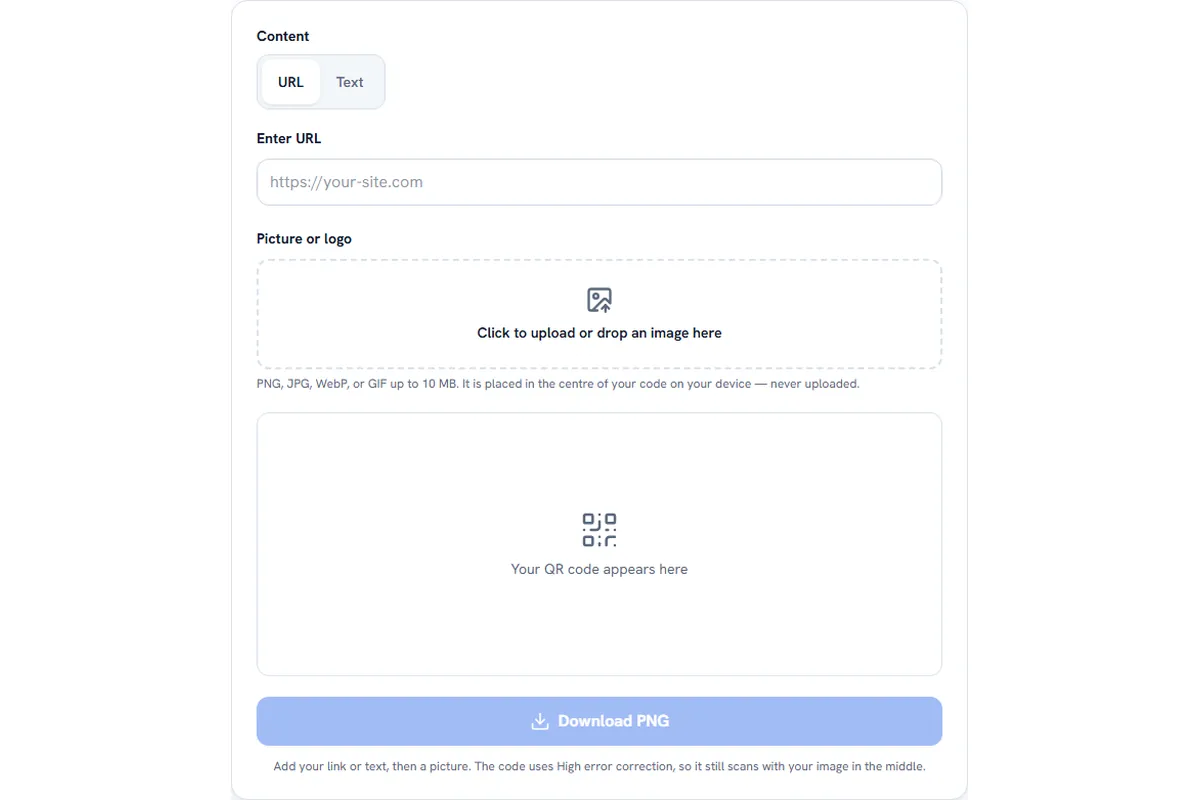
What do you need?
Two things: the link or text the code should open, and the picture — your logo, a product shot, or a photo. The RoyaleQR Image to QR Code tool accepts PNG, JPG, WebP, and GIF files, and fits the picture inside a square tile, so square images look best.
Enter the content first. The picture is only an overlay; the data underneath is what phones read, so check the link works before you add any artwork.
Why does the code still scan with a picture on it?
QR codes use Reed–Solomon error correction, which stores extra data so a covered or damaged part can be rebuilt. There are four levels, from Low (about 7% recoverable) to High (about 30%). The Image to QR Code tool always uses High, so there is no level to choose.
High correction makes the grid denser, so use the shortest link you can. Fewer, larger squares scan more reliably with a picture in the middle.
How big should the picture be?
The size slider sets the picture’s width as a share of the code’s width, from 14% up to a maximum of 30%. Treat 30% as the ceiling, not the target: start at the default 22%, which scans well on most phones, and only go larger after a test scan.
A bigger picture looks bolder but covers more data. If a phone hesitates, step the size down a few points before changing anything else.
How should I prepare the logo or photo?
The picture is placed on a white rounded tile, which keeps a clean edge between your artwork and the squares of the code. A transparent background simply shows that white tile, so there is no need to remove it — but crop away empty space around a logo, or it will look small inside the tile.
Bold, simple marks survive small print sizes better than detailed ones. For photos, a close crop of one clear subject is easier to recognize than a wide scene.
How do I test it before printing?
Download the 1024 × 1024 PNG and scan it on screen with two or three different phones. Then print one copy at the real size and scan that too, in the kind of light where it will be used. If any phone struggles, make the picture smaller, shorten the link, and keep the code dark on a light background.
Those three changes fix almost every problem.
Common mistakes
Pushing the picture to the maximum size without testing, using a long URL that makes the grid dense, cropping off the white margin around the code, and printing the code smaller than about 2 cm (0.8 in) wide.
How do you make a QR code in Canva?
Canva has a built-in QR code app: open Apps, search for “QR code” and paste your link. It makes a plain code without a logo. For a code with your logo, create it in the Image to QR Code tool, download the PNG and upload it to your Canva design.
Canva has a built-in QR code app. In the editor, open Apps, search for “QR code”, paste your link and the code is added to your design. It is the quickest way to create a QR code in Canva, but you get a plain code: there is no option to put a logo in the middle, and if you lay a logo on top yourself it is easy to cover too much of the pattern.
For a QR code with your logo in a Canva design, make the code here and bring it in: open the QR code generator with logo, enter your link, add your logo and download the 1024 × 1024 PNG. In Canva, choose Uploads, upload the PNG and drag it onto your design. The logo sits on a white tile and the code uses High error correction, so it keeps scanning.
Whichever way you make the QR code in Canva, keep the white margin around it, do not stretch it out of square, and avoid placing it on a busy photo. Scan it from the finished design, or from a test print, with a real phone before you share or print it.
Measured by RoyaleQR
What logo size is safe for a QR code?
Up to 30 percent of the code's width was safe in our test. With High error correction, 21 of 22 codes decoded with a logo at 15, 22 or 30 percent, and at 15 and 22 percent the same 21 still decoded when shrunk to 128 pixels. At 40 percent only 14 of 22 decoded.
| Logo width | Decoded at 1024 px | Decoded at 128 px |
|---|---|---|
| 15% of the width | 21 of 22 | 21 of 22 |
| 22% of the width | 21 of 22 | 21 of 22 |
| 30% of the width | 21 of 22 | 20 of 22 |
| 35% of the width | 20 of 22 | 18 of 22 |
| 40% of the width | 14 of 22 | 14 of 22 |
How we measured: on 21 November 2026 we built each example with the same QR library and settings this site uses, shrank every code to smaller sizes, saved it as a low-quality JPEG, and decoded each copy with jsQR, the decoder our QR Code Scanner runs. The examples are test data, not real accounts.
QR Code has error correction capability to restore data if the code is dirty or damaged.
Sources
Frequently asked questions
Ready to make your own QR code?
Open the free RoyaleQR generator and create a print-ready code in seconds — no sign-up, no watermark.
Image to QR CodeRelated articles
- How to Turn an Image into a QR Code
Two meanings, one guide: link a hosted image with a QR code, or place an image inside a QR code. Both explained simply.
- How to Create a QR Code
A clear, step-by-step guide to creating a QR code for free — pick a type, enter your content, customize the color, and download a print-ready PNG.
- How to Make a QR Code for a Link
Turn any URL into a scannable QR code. Paste your link, choose a color, and download a PNG that opens the page when scanned.